

How to create Jetpack Compose Splash Screen?
Splash Screen in Android 15+ with Jetpack Compose
With Android 15 and higher, splash screens are no longer just a visual feature — they are a system-level performance component. Google has fully standardized splash screens using the official Android SplashScreen API, and this applies to Jetpack Compose apps as well.
In this article, you’ll learn how splash screens work in Android 15+, what has changed, best practices, and modern splash screen ideas that follow Google’s latest guidelines.
What Is a Splash Screen in Android 15+
In Android 15+, a splash screen is a system-controlled launch screen that appears automatically when your app starts. It is drawn by the system before your app’s UI is created, ensuring a smooth and fast startup experience.
Unlike old fake splash screens created using delays or Compose layouts, Android 15 splash screens:
- Are rendered instantly by the system
- Reduce cold-start time
- Prevent blank screens
- Follow Material Design rules automatically
What Changed in Android 15+ Splash Screens?
Starting from Android 12, splash screens became mandatory. In Android 15+, Google has further refined this behavior.
- Splash screen animations are fully system-driven
- Custom UI splash screens are discouraged
- Theme-based splash configuration is mandatory
- Compose UI should never block app launch
This means your splash screen logic should be handled before Compose is loaded.
Why You Should NOT Use a Fake Splash Screen in Android 15+
Many developers still use:
- delay()
- LaunchedEffect()
- Extra Splash Composable Screens
In Android 15+, this is a bad practice.
Fake splash screens:
- Increase app startup time
- Feel slow to users
- Can cause ANR issues
- Violate Android performance guidelines
Official Splash Screen Approach for Android 15+
The Android SplashScreen API is the only recommended solution. It works seamlessly with Jetpack Compose and requires no UI hacks.
Key characteristics:
- Configured using app themes
- Runs before Compose is initialized
- Automatically adapts to light/dark mode
- Optimized for Android 15+ performance
Modern Splash Screen Ideas for Android 15+
1. App Icon Centered Splash
A centered adaptive app icon with brand color background. This is the most common and Google-recommended splash style.
2. Minimal Material Splash
Plain background with app icon only. Extremely fast and ideal for utility and productivity apps.
3. Dark Mode Adaptive Splash
Automatically switches colors based on system theme. Mandatory for modern Android 15 apps.
4. Logo with Subtle System Animation
Relies on system-provided icon animation. No custom animation code required.
5. Branding-Focused Splash
Uses strong brand colors and adaptive icons to create a premium first impression.
6. Authentication-Aware Splash
Splash screen stays visible while checking:
- User login state
- Session validity
7. Offline-Check Splash
Checks network availability before entering the app and navigates accordingly.
8. First-Time Launch Splash
Determines whether the app is opened for the first time and routes users to onboarding.
How Long Should a Splash Screen Last in Android 15+
Google recommends:
- No artificial delays
- Keep splash visible only while required
- Maximum perceived time under 2 seconds
If your app loads instantly, the splash screen should disappear instantly.
Common Mistakes to Avoid in Android 15+
- Using Compose UI as a splash screen
- Delaying app launch intentionally
- Heavy animations during startup
- Blocking the main thread
- Ignoring dark mode support
Best Splash Screen Strategy for Jetpack Compose Apps
| App Type | Best Splash Screen |
|---|---|
| Production App | System Splash API + App Icon |
| Startup / Product App | Brand Icon with System Animation |
| Developer Tool | Minimal Adaptive Splash |
| Content App | Auth / Offline Aware Splash |
Conclusion
In Android 15+, splash screens are no longer a design playground — they are a performance-critical system feature.
The best splash screen is one that:
- Loads instantly
- Uses the official SplashScreen API
- Respects system animations
- Never delays the user
If you are building Jetpack Compose apps in 2026, following Android 15+ splash screen guidelines is not optional — it is essential.
Stick to system splash screens, keep them simple, and let your app shine where it matters most — inside the UI.
15+ Splash Screen Ideas in Jetpack Compose (Modern and Production Ready – 2026)
A splash screen is the first visual experience of your Android app. In the Jetpack Compose era, a well-designed splash screen is not just about branding, but also about performance, user trust, and smooth navigation.
In this article, you’ll learn 15+ modern splash screen ideas in Jetpack Compose, best practices, and how to choose the right splash screen for real production apps.
What Is a Splash Screen in Jetpack Compose?
A splash screen is a short introductory screen that appears when an app launches. With Android 12+, Google introduced the official SplashScreen API, which is now the recommended way to implement splash screens — even for Jetpack Compose apps.
Unlike older fake splash screens made using delays, the new system splash screen:
- Loads faster
- Improves perceived performance
- Follows Material and Android guidelines
- Works seamlessly with Compose
Why Splash Screen Design Matters in 2026
In 2026, users expect apps to open instantly and look polished. A poorly designed splash screen can increase app uninstall rates.
A good splash screen should:
- Be lightweight
- Load under 2 seconds
- Match brand identity
- Never block the main thread
15+ Splash Screen Ideas for Jetpack Compose
1. Classic Logo Splash
A centered app logo with a solid background color. This is the most professional and widely used splash screen. Perfect for almost all production apps.
2. Animated Logo Scale Splash
The logo gently scales from small to normal size. This adds life without affecting startup performance.
3. Fade-In Logo Splash
The app logo fades in smoothly using alpha animation. Simple, elegant, and highly recommended for clean UI apps.
4. Lottie Animation Splash
Uses Lottie JSON animations (loading, waves, rocket, pulse). Best for startup apps and creative products, but should be lightweight.
5. Gradient Background Splash
A modern gradient background with your app logo. Works great for fintech, AI, and developer tools.
6. Typing Text Animation Splash
The app name appears letter by letter, like a typing effect. Popular in developer tools and coding apps.
7. Logo with Loader Indicator
A progress indicator below the logo that shows loading state. Perfect when checking authentication or remote config.
8. Authentication Check Splash
Splash screen decides navigation:
- User logged in → Home screen
- User not logged in → Login screen
9. First-Time User Splash
Checks whether the app is opened for the first time. New users are sent to onboarding, existing users to home.
10. Shimmer Effect Splash
Uses shimmer animation on logo or text. Gives a premium and modern feel.
11. Minimal White Splash
Just an app icon on a white background. Google-style and extremely fast.
12. Dark Mode Adaptive Splash
Splash screen automatically adapts to system dark or light mode. Highly recommended for modern Compose apps.
13. Tagline Splash Screen
Displays logo with a short tagline like:
“Build Faster with Jetpack Compose”
14. Brand Story Splash
Logo → tagline → fade out sequence. Best for startup or product-based apps.
15. Offline Detection Splash
Checks internet availability at launch. If offline, shows an offline-friendly screen.
16. Permission-Aware Splash
Checks required permissions (notifications, location). Navigates user accordingly without delay.
17. Skeleton UI Splash
Shows a fake preview layout while real data loads. Improves perceived performance dramatically.
Best Way to Implement Splash Screen in Jetpack Compose
The Android 12 SplashScreen API is the officially recommended solution. It uses themes instead of UI delays and works perfectly with Compose.
Why this method is best:
- No fake delays
- Fast app startup
- System controlled animation
- Google recommended
Common Splash Screen Mistakes
- Using delay() just to show splash
- Heavy animations on startup
- Blocking UI thread
- Too long splash duration
Avoid these mistakes to improve app ratings and user retention.
Which Splash Screen Is Best for You?
| App Type | Recommended Splash |
|---|---|
| Production App | Logo + System Splash API |
| Startup App | Animated Logo / Lottie |
| Developer App | Typing Text / Minimal Splash |
| Content App | Skeleton UI Splash |
Final Thoughts
A splash screen is not just a design element — it’s a performance and UX decision. With Jetpack Compose and the Android 12 SplashScreen API, you can create fast, modern, and professional splash screens without hacks.
Choose a splash screen that matches your app’s purpose, keep it lightweight, and always prioritize user experience.
If you want complete Jetpack Compose tutorials, project ideas, and real-world examples, keep following this blog.
Lets build:
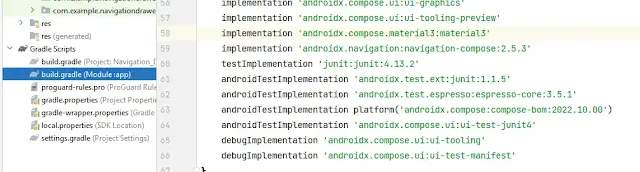
1. Dependency (required)
implementation("androidx.core:core-splashscreen:1.0.1")2. Splash Theme (Android 15+)
<style name="Theme.App.Splash" parent="Theme.SplashScreen"> <item name="windowSplashScreenBackground">#0B0F1A</item> <item name="windowSplashScreenAnimatedIcon">@drawable/cb_logo</item> <item name="windowSplashScreenIconBackgroundColor">#0B0F1A</item> <item name="postSplashScreenTheme">@style/Theme.ComposeApp</item> </style>
3. Manifest
A <activity android:exported="true" android:name=".MainActivity" android:theme="@style/Theme.App.Splash"> <intent-filter> <action android:name="android.intent.action.MAIN">
<category android:name="android.intent.category.LAUNCHER"> </category></action></intent-filter> </activity> 4. MainActivity (Splash Control)
class MainActivity : ComponentActivity() {
    override fun onCreate(savedInstanceState: Bundle?) {
        val splash = installSplashScreen()
        var keepSplash = true

        splash.setKeepOnScreenCondition { keepSplash }
        super.onCreate(savedInstanceState)

        lifecycleScope.launch {
            delay(1200) // simulate auth / config check
            keepSplash = false
        }

        enableEdgeToEdge()
        setContent {

                AppEntry()

        }
    }
}
5. Unique Splash Entry UI (Pattern Design)
@Composable
fun AppEntry() {
    MaterialTheme {
        Box(
            modifier = Modifier
                .fillMaxSize()
                .background(Color(0xFF0B0F1A))
        ) {
            DotPatternBackground()
            SplashBrand()
        }
    }
}
6. Pattern Background (Unique Look)
@Composable
fun DotPatternBackground() {
    Canvas(
        modifier = Modifier.fillMaxSize()
    ) {
        val spacing = 60f
        for (x in 0..(size.width / spacing).toInt()) {
            for (y in 0..(size.height / spacing).toInt()) {
                drawCircle(
                    color = Color.White.copy(alpha = 0.08f),
                    radius = 8f,
                    center = Offset(x * spacing, y * spacing)
                )
            }
        }
    }
}
7. Animated Brand Content
@Composable
fun SplashBrand() {
    val scale = remember { Animatable(0.8f) }
    val alpha = remember { Animatable(0f) }

    LaunchedEffect(Unit) {
        scale.animateTo(
            targetValue = 1f,
            animationSpec = tween(700, easing = FastOutSlowInEasing)
        )
        alpha.animateTo(
            targetValue = 1f,
            animationSpec = tween(500)
        )
    }

    Column(
        modifier = Modifier
            .fillMaxSize()
            .graphicsLayer(
                scaleX = scale.value,
                scaleY = scale.value,
                alpha = alpha.value
            ),
        verticalArrangement = Arrangement.Center,
        horizontalAlignment = Alignment.CenterHorizontally
    ) {
        Icon(
            painter = painterResource(id = R.drawable.cb_logo),
            contentDescription = null,
            tint = Color.Unspecified,
            modifier = Modifier.size(396.dp)
        )

        Spacer(modifier = Modifier.height(16.dp))

        Text(
            text = "Compose Beyond Limits",
            color = Color.White.copy(alpha = 0.85f),
            fontSize = 16.sp,
            letterSpacing = 1.sp
        )
    }
}
Output :-

